Accurate Text Area Detection
Finds added words, subtitles, labels, timestamps, and banner text even when the background has patterns, gradients, or fine details, so it can remove text from image content more accurately.
Remove text from image with an AI workflow built for captions, subtitles, date stamps, labels, and other unwanted wording that distracts from the visual.
Drag and drop up to 1 image here, or click to upload
Supports JPG, JPEG, PNG, WebP, and AVIF. Up to 50 MiB per file.
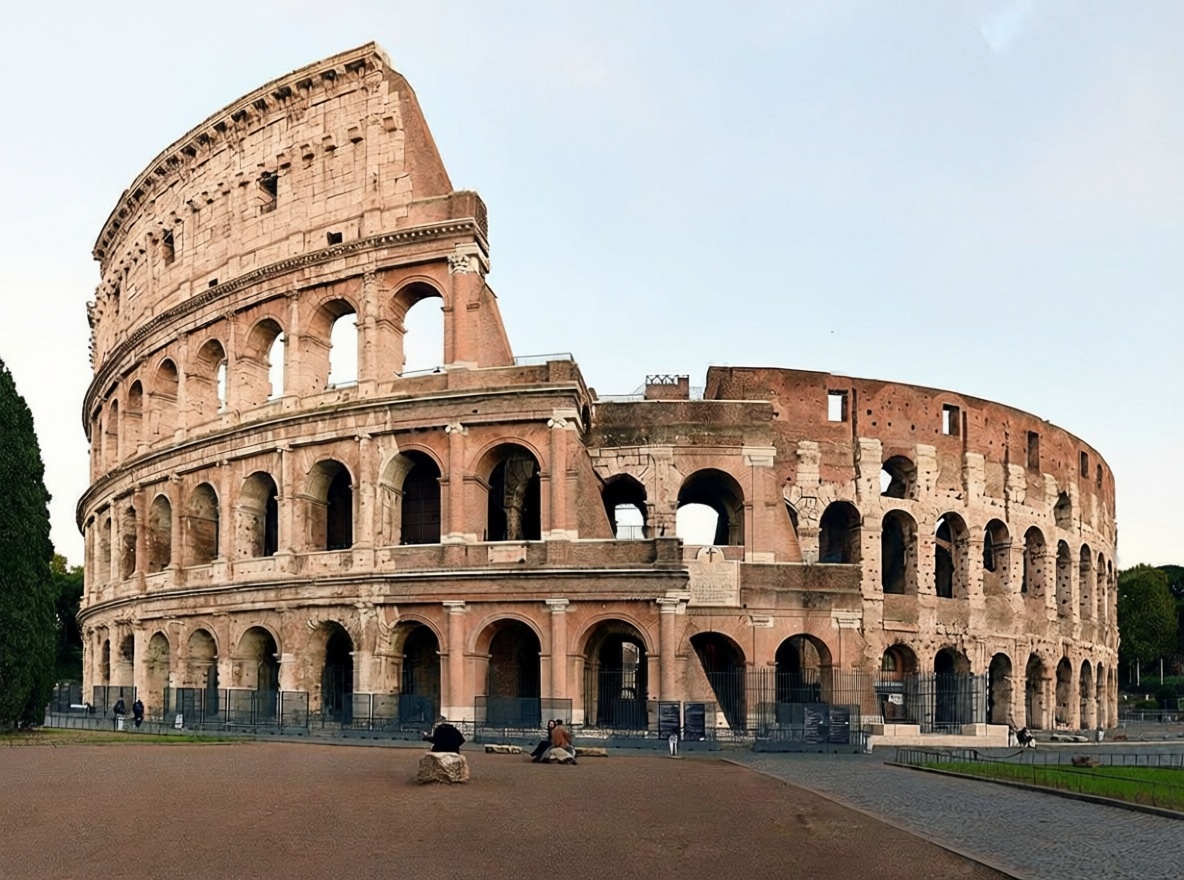
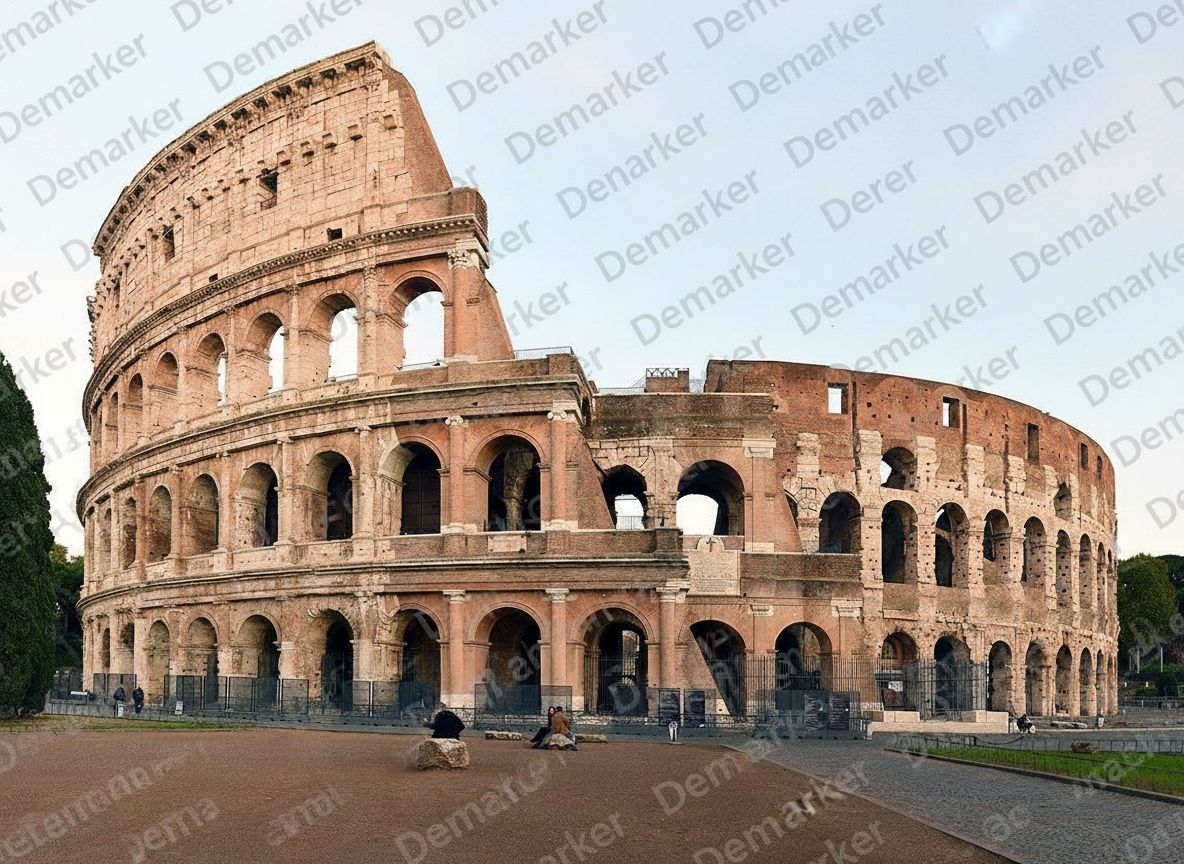
A simple three-step flow to remove text from image assets such as captions, labels, subtitles, and other added text while keeping the background believable in everyday remove text from image work.
Choose the cleanest source file you have so the AI can better understand the background behind the text layer before it removes text from image areas and starts the remove text from image process.
The model removes the unwanted words and reconstructs nearby surfaces, colors, and details where the text used to be, helping you remove text from image files without obvious patching.
Inspect the cleaned area, especially around edges or repeated patterns, then download the finished image once it looks natural and ready for remove text from image use cases.
The workflow is tuned to remove text from image content with overlaid words and letters while keeping backgrounds, edges, and lighting believable.
Finds added words, subtitles, labels, timestamps, and banner text even when the background has patterns, gradients, or fine details, so it can remove text from image content more accurately.
Fills cleared areas by following nearby textures and color transitions so the edited zone blends back into the image instead of looking patched after you remove text from image content.
Useful for product images, screenshots, marketing creatives, travel photos, and archived visuals where teams need to remove text from image assets quickly.
Export high-quality results for listings, blogs, ad creatives, or client delivery without obvious edit marks or low-resolution artifacts after you remove text from image files.
Flexible pricing options for different needs
For casual creators
Best for regular photo cleanup
Built for power users
These examples reflect the kinds of images teams clean when they need to remove text from image files without leaving obvious repair marks behind.
Remove promotional text, supplier labels, or temporary sales copy from product images while keeping packaging edges and textures natural when you remove text from image files for ecommerce.


Clear timestamp overlays or subtitles from travel photos and screenshots without breaking skies, skin tones, or flat color regions when you need to remove text from image content cleanly.


Erase old slogans, campaign text, or overlaid words so creative teams can remove text from image assets and repurpose visuals across new channels and formats.
When you need to remove text from image assets at scale, this workflow helps keep output clean and consistent.
Explore other Demarker pages built alongside AI Watermark Remover for watermark removal, text cleanup, and fast image polishing across different production needs.
Use the main Demarker workflow to remove logos, text overlays, and common watermarks from everyday images with natural-looking repairs.
A focused landing page for photo cleanup when you need to remove watermark from photo collections such as portraits, travel shots, product photos, and social visuals.
Built for brand-mark cleanup when you need to erase corner logos, app badges, or graphic overlays while keeping the background believable.
Mark unwanted people and reconstruct the hidden background with a focused AI removal workflow.
Built for photo-first timestamp cleanup when you need to erase camera date stamps, time overlays, or corner labels while keeping lighting and texture believable.
Remove image backgrounds online with AI and create clean product photos, portraits, stickers, and transparent PNG assets faster.
Remove unwanted objects from photos with AI while keeping backgrounds, lighting, and surrounding detail natural.
Short answers for creators, marketers, ecommerce teams, and anyone who needs to remove text from image assets regularly.